Best Monitor for PS5 in 2026: What to Check
Picking a monitor for a PS5: 4K 120Hz, 1440p output, VRR, HDMI 2.1 and cables per Sony's support page, plus four matching monitors and their limits.
At a glance
For a PS5, pick a monitor with an HDMI 2.1 port. The Dell 27 Plus 4K USB-C lists two HDMI 2.1 ports and 120Hz at 4K, and the LG UltraGear OLED 27GX790A-B adds 1440p OLED. The Samsung Odyssey G50D is the most affordable gaming pick, but Samsung lists only HDMI 2.
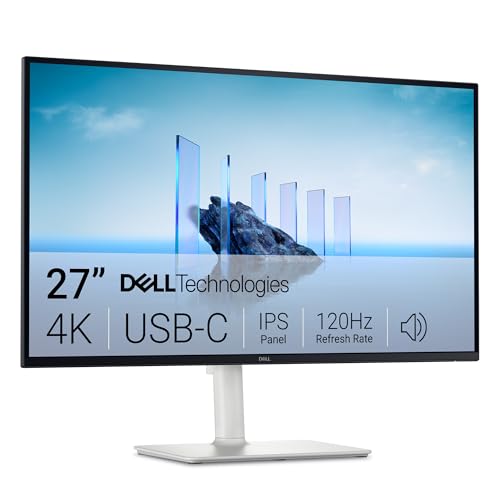
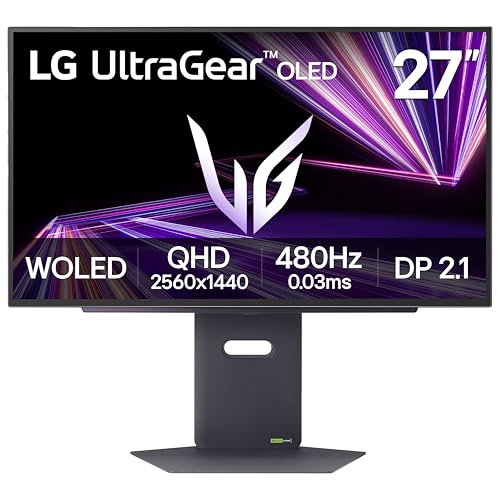
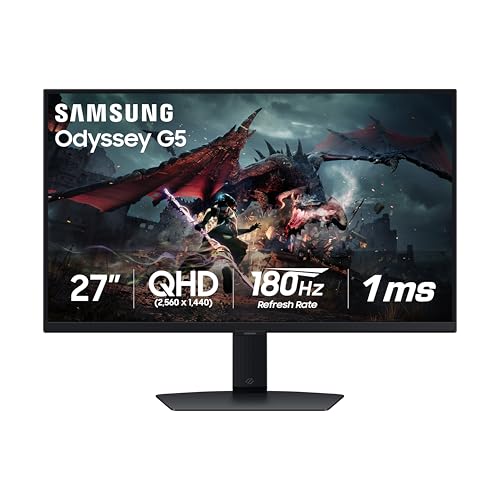
A PS5 asks more of a monitor than most people expect. The console can output 4K at 120Hz, it supports variable refresh rate, and it can send 1440p to a screen that accepts it. A monitor that looks perfect on paper for a PC can be a poor fit for the console if the right input is missing. This page walks through what Sony’s support pages say, which monitor specs matter, and how four models in our lineup fit.
We do not test monitors ourselves. Console facts below come from Sony’s support page, and monitor facts come from the manufacturer pages we opened and the profiles we wrote. A rule we hold to: we only state an HDMI version or a refresh rate over HDMI when a manufacturer page or a named source gives it. Where nothing is published, we say so. For the whole lineup, see our best monitors of 2026 comparison.
What Sony Says the PS5 Can Output
Sony’s page on PS5 resolution settings is the best starting point. It says the console supports the HDMI 2.1 specification and 4K 120Hz output, and it also notes that HDMI 2.1 is not yet fully supported across the market, so some 4K 120Hz issues may occur. The settings you will use sit under Settings, Screen and Video, Video Output:
- Resolution. Sony says that if your screen supports 1440p output, you can set Resolution to 1440p and check 60Hz, 120Hz and VRR output. If you have trouble at 4K, Sony suggests Resolution on Auto or 2160p and Video Transfer Rate on Auto.
- 120Hz output. Sony says this setting enables 120Hz output for your screen and for games that support it. If you see problems on a monitor, turn it off.
- VRR. The refresh rate adjusts in real time on screens and games that support it. Sony says results vary depending on the screen.
- ALLM. A screen that supports auto low-latency mode switches to low latency while you play. Sony adds that the console still switches to low latency during VRR output even if ALLM is off.
- Cable. Sony recommends the HDMI cable that comes with the PS5, or an Ultra High Speed HDMI cable that supports HDMI 2.1.
Notice that nothing on that list involves DisplayPort or USB-C. A PS5 connects over HDMI only, so what counts is what the monitor accepts on its HDMI inputs, not the headline number on the box.
The Three Questions to Ask About Any Monitor
- Does it have an HDMI 2.1 port? If you want 4K at 120Hz, Sony recommends using the screen’s HDMI 2.1 port. A monitor that lists HDMI 2.0-class ports is built for 4K at 60Hz at best.
- Does it accept 1440p over HDMI at the refresh rate you want? A 1440p signal is easier for a console to drive and keeps motion smooth, but the monitor has to support it on that input.
- Does VRR work over HDMI? FreeSync Premium and G-Sync Compatible are the labels you will see, but those describe PC use. For a console, look for confirmation of VRR over HDMI on the maker’s pages or in its manual.
Also note audio. Several gaming monitors list no speakers, so plan on a headset plugged into the controller or the monitor’s headphone jack.
Dell 27 Plus 4K USB-C (S2725QC): The All-Round Pick
A 27-inch 4K IPS monitor that Dell lists at 120Hz with two HDMI 2.1 ports and built-in speakers. It also docks a laptop over USB-C, so one screen covers work and console.
On paper, this is the most console-friendly monitor in our lineup. Dell lists a 3840 x 2160 panel with a 120Hz refresh rate and AMD FreeSync Premium, two HDMI 2.1 ports and two 5W speakers. That combination is the one Sony’s page describes for 4K 120Hz, though Dell’s page does not break out the refresh rate per input. Dell’s manual is the place to confirm 4K at 120Hz over HDMI before you count on it.
It is not a competitive esports monitor. Dell lists a 4 ms fast response mode rather than 1 ms, and brightness of 350 cd/m2 with no HDR certification, so HDR games will not look dramatically different. It also has no standalone DisplayPort input, which does not matter for a PS5. The upside is flexibility: with a laptop on the USB-C port you can use the same screen for work. Details in our Dell S2725QC profile.
LG UltraGear OLED 27GX790A-B: For Players Who Want OLED Speed
A 27-inch 1440p OLED with two HDMI ports (HDMI 2.1 per LG's announcement), 0.03 ms response and DisplayHDR True Black 400. For console players who prefer deep blacks and fast motion over 4K.
LG lists a 2560 x 1440 WOLED panel with a 480Hz maximum, 0.03 ms gray-to-gray response, one DisplayPort 2.1 port and two HDMI ports; LG’s launch announcement describes them as HDMI 2.1. A PS5 is not going to feed 480Hz, and we have no source that states the refresh rate per input for this model, so we do not quote a number over HDMI. What the specs do suggest is a good fit for the 1440p mode Sony describes: the resolution matches, and the two HDMI ports let you keep a console and a PC connected at once.
Brightness is the catch. LG’s page lists 275 cd/m2 typical, so it looks best in a dim room. OLED also asks for care with static HUD elements, and the pages we opened do not state LG’s burn-in terms. Read the warranty for this exact model and check the seller. Our LG UltraGear profile covers the rest.
Alienware AW2725DF: A PC Monitor With a Known HDMI Limit
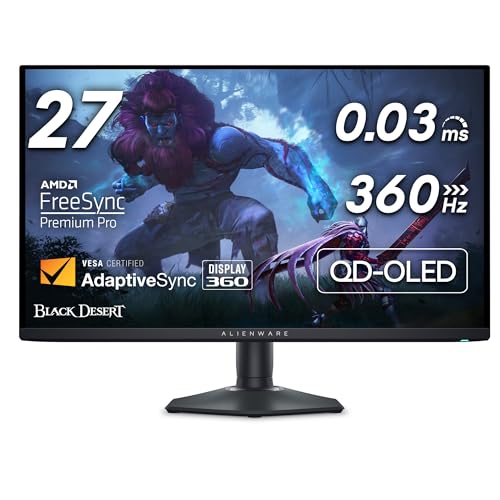
A 26.7-inch 1440p QD-OLED at up to 360Hz over DisplayPort. Notebookcheck reports HDMI is limited to 144Hz at 1440p, so it suits a PC first and a console second.
Notebookcheck’s coverage says the AW2725DF reaches 1440p at 360Hz only over DisplayPort, and that HDMI is limited to 1440p at 144Hz. For a console player, that means a ceiling of 144Hz at 1440p on the HDMI port, which is still above the 120Hz Sony offers, if the monitor accepts that signal from the console. Dell lists DisplayHDR True Black 400 and FreeSync Premium Pro, but the pages we opened do not give a full port list or warranty terms, so confirm both on Dell’s own sheet. Pick it if a gaming PC is your main machine and the PS5 is a second device. See the Alienware AW2725DF profile.
Samsung Odyssey G50D: The Most Affordable Gaming Pick
A 27-inch 1440p Fast IPS at up to 180Hz, with FreeSync and G-Sync Compatible. It is the most affordable gaming pick in our lineup, but Samsung lists HDMI 2 and no HDMI 2.1 port.
Samsung lists a 2560 x 1440 panel at 180Hz with a 1 ms response time, one DisplayPort 1.2 and one HDMI port described as version 2. It has no HDMI 2.1 port, so it is not the monitor for 4K 120Hz. It may still work for a PS5 at 1440p, but we found no source that states what refresh rate it accepts over HDMI, so check Samsung’s manual first. It lists no speakers and a one-year warranty, and Samsung’s own store listed the model as out of stock, so check the seller and the model number LS27DG500ENXZA. The Samsung Odyssey G50D profile has the details.
How to Choose
- You want the safest console choice on paper: the Dell S2725QC, with two HDMI 2.1 ports and a 4K 120Hz panel.
- You want OLED motion and contrast at 1440p: the LG 27GX790A-B, in a dim room.
- You game mostly on a PC and sometimes on a PS5: the Alienware AW2725DF, knowing its HDMI limit.
- You game on a PC and want the lowest entry point: the Samsung G50D, and read the HDMI notes first.
Setup Checklist
- Use the cable in the PS5 box in the monitor’s HDMI 2.1 port.
- Set Resolution to Auto first, then try 1440p if your monitor supports it.
- Turn on 120Hz and VRR one at a time, and turn 120Hz off if you see output problems.
- Turn on the monitor’s game or low-latency mode if it has one.
Sources
- How to change PS5 console resolution, PlayStation Support
- Dell 27 Plus 4K USB-C Monitor S2725QC, Dell US product page
- LG UltraGear 27-inch OLED 480Hz QHD Gaming Monitor 27GX790A-B, LG Canada specifications
- LG unveils UltraGear OLED gaming monitor with 480Hz refresh rate, LG global newsroom
- Alienware 27-inch 360Hz QD-OLED Gaming Monitor AW2725DF, Dell product page
- Alienware AW2725DF announcement, Notebookcheck
- Samsung 27-inch Odyssey G50D, Samsung Canada specifications
Frequently asked questions
Does the PS5 support 1440p?
Sony's PS5 resolution support page says that if your screen supports 1440p output, you can set Resolution to 1440p and then check 60Hz, 120Hz and VRR video output. Open Settings, Screen and Video, then Video Output to find the options. Not every monitor accepts that signal, so confirm 1440p over HDMI on the monitor maker's page.
Do I need HDMI 2.1 for a PS5 monitor?
Sony says the PS5 supports the HDMI 2.1 specification and 4K 120Hz output, and recommends using the screen's HDMI 2.1 port if it has one. A monitor with HDMI 2 only, such as the Samsung G50D according to Samsung's spec table, is a weaker match for 4K 120Hz. It may still work well at lower modes, so read the manual for refresh rates per input.
Does the PS5 support VRR on a monitor?
Sony lists a VRR setting that lets the refresh rate adjust in real time on screens and games that support it, and says results vary depending on the screen. The monitor has to support VRR over its HDMI port. Check the maker's page for that, not just for FreeSync or G-Sync Compatible, which are usually described for a PC connection.
Which cable should I use?
Sony recommends the HDMI cable included with the PS5. If you use another cable, Sony says an Ultra High Speed HDMI cable that supports HDMI 2.1 should support ALLM. Plug it into the monitor's HDMI 2.1 port if there is one.
Should I turn off 120Hz if I see problems?
Sony says that if you have video output problems with 120Hz games on a monitor or other display, you should turn the 120Hz setting off. You can turn it back on once you know your cable and port support it.
Does an OLED monitor suit a PS5?
It can, but the details matter. HUD elements stay in the same place for hours, which is the usual burn-in concern with OLED, and warranty terms differ by maker. LG's pages that we opened do not state burn-in coverage, and we could not confirm Dell's terms either, so read the current warranty for the exact model.