Best Monitor for MacBook and Mac in 2026
How to pick a monitor for a MacBook Air, MacBook Pro or Mac mini: external display limits per chip, USB-C charging watts, 4K scaling and four matching models.
At a glance
For a MacBook, pick a 27-inch 4K monitor with USB-C charging. The BenQ MA270U adds 90W charging and Mac keyboard brightness control. The Dell 27 Plus 4K USB-C offers 65W and 120Hz, and the Dell UltraSharp U2725QE brings 140W Thunderbolt 4 docking. Check your chip's external display limit first.
A MacBook is easy to love and a little cramped. The screen is sharp, but the moment you open two documents side by side or join a video call with notes open, you want more room. An external monitor fixes that, and the Mac is picky in only a few ways. Which chip you own decides how many monitors you can run, the USB-C port decides whether one cable can also charge the laptop, and the monitor’s pixel density decides whether text looks as crisp as it does on the built-in screen.
We do not test monitors ourselves. The advice below comes from Apple’s own support pages, the manufacturers’ specification pages and the profiles we wrote for each model. Where a page did not state something, we say so. For the full ranking of all nine monitors we cover, see our best monitors of 2026 comparison.
Step 1: Check How Many Displays Your Mac Supports
This is the limit people discover too late. Apple publishes it in the tech specs for each model, and it differs by chip, so look up your exact Mac.
- MacBook Air with M4 (13-inch, 2025). Apple lists “up to two external displays with up to 6K resolution at 60Hz” alongside the built-in screen at full native resolution. The page lists two Thunderbolt 4 (USB-C) ports with DisplayPort support and a separate MagSafe 3 charging port, so you can keep charging while both USB-C ports drive monitors. Apple’s page does not say whether the lid must be open or closed for the two-display figure.
- MacBook Air with M3 (13-inch, 2024). Apple lists one external display at up to 6K and 60Hz, and says a second one, up to 5K at 60Hz, works with the lid closed. In practice that means a two-monitor desk with the laptop shut, rather than a three-screen setup.
- Mac mini (2024). Apple lists up to three displays on the M4 chip and up to three on the M4 Pro, in several resolution combinations over Thunderbolt and HDMI. The HDMI port supports one display at up to 8K at 60Hz or 4K at 240Hz on both chips.
We did not open the pages for older chips or for the MacBook Pro, so we make no claim about them. Search for your model’s name plus “tech specs” on Apple’s support site and read the line that begins with “Display”.
Step 2: Decide Whether One Cable Should Also Charge the Laptop
The cleanest MacBook desk uses one USB-C or Thunderbolt cable for picture, power and accessories. Three things have to line up.
- The monitor’s USB-C port must carry video. The standard behind this is DisplayPort Alt Mode over USB-C. Dell’s support guide says ports that support it carry a DisplayPort logo, and that a display plugged into a port without DisplayPort support shows no picture, though it does not damage the device. Every USB-C port on a Mac with Thunderbolt carries DisplayPort video, which is why Apple’s pages list DisplayPort over USB-C and Thunderbolt together.
- The monitor’s power delivery must be enough. This is a maximum, not a promise. The three USB-C monitors in this guide list 65W, 90W and 140W. Look at the small print on your MacBook’s charger for its wattage. Apple’s page for the M4 MacBook Air says fast charging needs the 70W USB-C power adapter, and that the bundled adapter is 30W or 35W depending on the GPU configuration, so a 65W monitor port is in the same range for that machine. Apple’s larger laptops ship with bigger chargers, and we did not open their pages, so compare your own charger’s number to the monitor’s.
- The cable must be good enough. Use the cable in the monitor’s box, or one that is rated for video and for the wattage you need.
A Mac mini has no battery, so charging does not matter there. Look at resolution and ports instead.
Step 3: Understand 4K, Scaling and Text Sharpness
On a 27-inch screen, 4K is the sweet spot for a Mac. Dell lists 163 pixels per inch for its 27-inch 4K monitors, and BenQ lists the same figure for the MA270U. Apple’s Mac User Guide says that by default your Mac automatically uses the best resolution for a display. If you want to change it, open System Settings, choose Displays, click your monitor and look at the Resolution options. You can turn on Show all resolutions on a connected display. Apple adds that app windows may not fit entirely on screen depending on how you adjust it, and that a scaled resolution may affect performance.
A 1080p 27-inch monitor works out to roughly 82 pixels per inch according to Dell’s page for the S2725HS, which is why we do not recommend that model for Mac users who read and write all day. A 32-inch 4K screen is about 138 pixels per inch according to our own arithmetic from Samsung’s listed size and resolution: larger and more cinematic, but a bit less sharp than a 27-inch.
Step 4: Set Up Extend or Mirror
Connect the monitor, then choose the Apple menu, then System Settings, then Displays. Click the monitor’s name and use the “Use as” pop-up menu to choose extended desktop or mirroring. Apple says that on a Mac laptop you must have an external display connected to see these options, and that on a Mac mini you need more than one display connected. To mirror some displays and extend others, set all of them to extended first, then hold Option and drag one display’s icon onto another’s.
The Models We Recommend for Mac Owners
All four models below are in our lineup, and each links to its profile. None is described here with a price; use the Amazon button to see the current price and to check the seller and warranty on the listing.
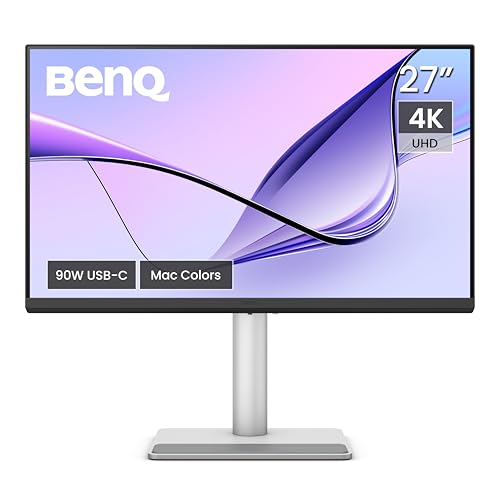
BenQ MA270U: Our Pick for MacBook Owners
A 27-inch 4K matte monitor with 90W USB-C charging, a second USB-C port and Mac-specific software for keyboard brightness and volume control.
BenQ markets the MA270U for MacBook owners, and the feature list shows it. According to BenQ it covers 99% sRGB and 95% P3, it has a Nano Matte finish and its USB-C upstream port delivers 90W with DisplayPort Alt Mode. BenQ describes Mac Color Match as a way to tune colors toward those of a MacBook display. It also says that with Display Pilot 2 installed you can adjust brightness and volume from the MacBook keyboard.
The trade-offs are plain. It runs at 60Hz, its speakers are 3W each and BenQ lists no DisplayPort connector, so it is a MacBook and Mac mini monitor more than a gaming monitor. Our BenQ MA270U profile has the full port and stand details.
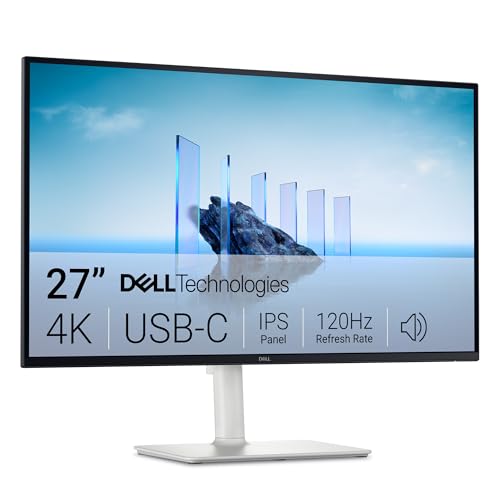
Dell 27 Plus 4K USB-C (S2725QC): The All-Round Pick
A 27-inch 4K IPS monitor at up to 120Hz with 65W USB-C charging, two HDMI 2.1 ports and built-in speakers. A good match for thin-and-light MacBooks.
Dell lists a USB-C upstream port with DisplayPort 1.4 Alt Mode and up to 65W of power delivery, two HDMI 2.1 ports, two USB-A ports and two 5W speakers, plus a stand with about 5.1 inches (130 mm) of height adjustment and a 90-degree pivot. It is the one we would start with for a MacBook Air. It does not offer wide-gamut color, since Dell lists 99% sRGB, and it has no DisplayPort input, which does not matter on a Mac that uses USB-C. See the Dell S2725QC profile for the specs we read.
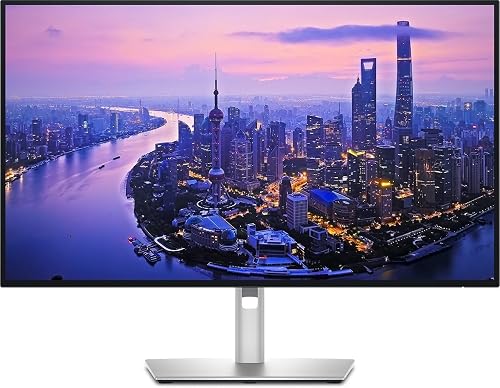
Dell UltraSharp U2725QE: For Docking and Color Work
Thunderbolt 4 with up to 140W charging, 2.5GbE Ethernet, a KVM switch and 99% DCI-P3 color for MacBook owners who want a true docking monitor.
This is the monitor to choose if your MacBook charger is large or if you want wired networking. Dell lists up to 140W on the Thunderbolt 4 upstream port, a 2.5GbE port and a built-in KVM switch that lets two computers share one keyboard and mouse. It lists 99% DCI-P3 and DisplayHDR 600, which interests Mac owners who edit photos or video. It has no built-in speakers, and this monitor is sometimes sold by third-party sellers, so check the seller and warranty. More in the UltraSharp U2725QE profile.
Samsung Smart Monitor M8 (M80D): The All-in-One Screen
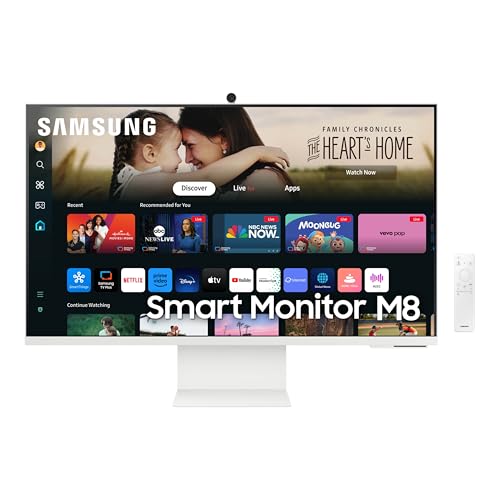
A 32-inch 4K screen with 65W USB-C charging, streaming apps, a camera and speakers, for a Mac in a dorm or small apartment.
Samsung lists a 32-inch 4K VA panel at 60Hz, USB-C with 65W charging, one HDMI 2.0 port, Tizen streaming apps, a camera and a 10W speaker output. It suits someone who wants one screen for work, video calls and streaming. It is less sharp than a 27-inch 4K monitor and it adds smart-TV software you may not want. Make sure the listing reads M80D and LS32DM801UNXZA. Details in the Samsung M8 profile.
Quick Picks by Mac
- MacBook Air, one or two monitors: the Dell S2725QC or BenQ MA270U, matching the charger wattage first.
- MacBook Pro or any laptop with a large charger: compare the 90W BenQ and 140W Dell against your own charger.
- Mac mini: any of the four; choose on resolution, finish and ports.
- Dorm or studio: the Samsung M8.
Sources
- MacBook Air (13-inch, M4, 2025) tech specs, Apple Support
- MacBook Air (13-inch, M3, 2024) tech specs, Apple Support
- Mac mini (2024) tech specs, Apple Support
- Use your Mac with extended or mirrored displays, Apple Mac User Guide
- Change your Mac display’s resolution, Apple Mac User Guide
- Guide to DisplayPort over USB-C, Dell Support
- BenQ MA270U, BenQ US product page
- Dell 27 Plus 4K USB-C Monitor S2725QC, Dell US product page
- Dell UltraSharp 27 4K Thunderbolt Hub Monitor U2725QE, Dell UK specifications page
Frequently asked questions
How many external monitors can a MacBook Air run?
It depends on the chip. Apple's tech specs for the 13-inch MacBook Air with M4 list up to two external displays at up to 6K and 60Hz. Its spec page for the 13-inch M3 model lists one external display at up to 6K and 60Hz with the lid open, and a second one at up to 5K and 60Hz with the lid closed. Look up the exact model you own on Apple's tech specs page before you buy a second monitor.
Will a monitor charge my MacBook through USB-C?
Only if the monitor's USB-C port supports power delivery at a wattage your MacBook can use. Dell lists up to 65W on the S2725QC, BenQ lists 90W on the MA270U, and Dell lists up to 140W on the U2725QE. Check the wattage printed on your MacBook's own charger. If the monitor offers less, the laptop may charge slowly or keep draining under heavy load.
Is a 27-inch 4K monitor sharp enough for macOS?
Dell lists the 27-inch 4K panels in this guide at about 163 pixels per inch. Apple says your Mac automatically uses the best resolution for a display by default, and you can open System Settings, choose Displays and pick a different setting if you want larger text or more room. Apple also warns that a scaled resolution may affect performance.
Can I change monitor brightness with my MacBook keyboard?
Many monitors only adjust brightness from their own on-screen menu. BenQ says its MA270U can do it from the MacBook keyboard once you install Display Pilot 2, enable iKeyboard Control and choose the monitor as the audio output in macOS. We did not find the same claim on the Dell pages we read.
What ports do I need to connect a Mac mini?
Apple's tech specs for the 2024 Mac mini list an HDMI port plus Thunderbolt ports that carry DisplayPort video. A monitor with HDMI or a USB-C video input will work. Because a Mac mini has no battery, the power delivery wattage of a monitor matters less than the resolution and ports.
Do I have to use a Mac-branded monitor?
No. Any monitor with a compatible input can work with a Mac. The BenQ MA270U is built around Mac features, while the Dell models are standard monitors that Dell lists as compatible with macOS on the S2725QC page we read.