Best Monitor for a Laptop: Desk and Portable Picks
How to choose an external monitor for a laptop: USB-C video vs data-only ports, charging watts, HDMI fallback, a portable travel screen and Windows and Mac setup.
At a glance
For a laptop on a desk, pick a monitor with USB-C video and charging. The Dell 27 Plus 4K USB-C lists 65W, and the Dell UltraSharp U2725QE lists 140W and Ethernet. For travel, the ASUS ZenScreen MB16AHG weighs about 2 lb. Confirm your laptop's USB-C port carries video first.
A laptop screen is fine for email and bad for almost everything else you do at a desk. A second, larger screen lets you keep a document on one side and research on the other, and it puts the picture at eye level. Choosing one is easier than it looks, but it hinges on one question that spec sheets answer badly: how does the laptop actually connect? The right cable gives you picture, charging and USB devices through one plug. The wrong one gives you a blank screen.
We do not test monitors ourselves. The advice below comes from Dell’s support guide on DisplayPort over USB-C, Microsoft’s and Apple’s support pages, and the manufacturer pages behind our monitor profiles. Where a page did not state something, we say so. To compare all nine monitors in our lineup, see our best monitors of 2026 comparison.
Step 1: Find Out What Your Laptop’s Ports Can Do
Look at the ports on the side of your laptop. There are three common cases.
- USB-C with DisplayPort or Thunderbolt. This can send video and often accepts charging. Dell’s guide says the standard is called DisplayPort Alt Mode for USB-C, that it can use the four high-speed data lanes in the cable to support 4K and higher resolutions, and that ports supporting it carry a DisplayPort logo. Thunderbolt ports also carry video.
- USB-C for data and charging only. Some laptops, especially budget models, have USB-C ports that do not output video. Dell says a display plugged into such a port shows no picture, though it does not damage anything. Your laptop maker’s spec page should say.
- HDMI. A full-size HDMI port always works as the fallback and needs no special logo. It carries video but does not charge the laptop.
If your laptop has only USB-C ports and no video output on them, a USB dock or adapter that adds HDMI is the usual route, and Dell notes that adapter cables exist to connect DisplayPort over USB-C to HDMI, DVI or VGA monitors.
Step 2: Match the Monitor’s Power Delivery to Your Charger
When a monitor can charge your laptop over the same USB-C cable, the number to watch is power delivery wattage. Dell lists up to 65W on the S2725QC, and up to 140W on the Thunderbolt 4 port of the U2725QE. Look at the small print on your laptop’s own charger. If the monitor’s number is equal to or above it, one cable is likely enough. If it is lower, the laptop may charge slowly, or keep draining battery under heavy use, because the monitor cannot supply what the laptop asks for. The monitor’s number is a maximum. It is not a promise that every laptop will accept it.
Step 3: Choose Size and Resolution
On a 27-inch screen, 4K gives sharp text. Dell lists 163 pixels per inch for its 27-inch 4K models. A 27-inch 1080p screen is about 82 pixels per inch according to Dell’s page for the S2725HS, which is fine for video and spreadsheets but softer for small type. If you read and write all day, we would pay for the sharper panel.
Step 4: Set Up Extend or Mirror
Windows. Press the Windows key and P to pick PC screen only, Duplicate, Extend or Second screen only. Microsoft says Duplicate shows the same thing on all displays, while Extend lets you see your desktop across screens and move items between them. To arrange them, open Settings, System, Display and drag each display to match your desk, then choose Apply. If a monitor does not appear, go to Multiple displays and select Detect. Microsoft also says to make sure your cables are properly connected to your PC or dock.
macOS. Open the Apple menu, then System Settings, then Displays. Click the monitor’s name and use the Use as pop-up menu. Apple says a Mac laptop must have an external display connected for the options to appear. Each Apple silicon Mac has its own limit on how many external displays it supports, so check your model’s tech specs.
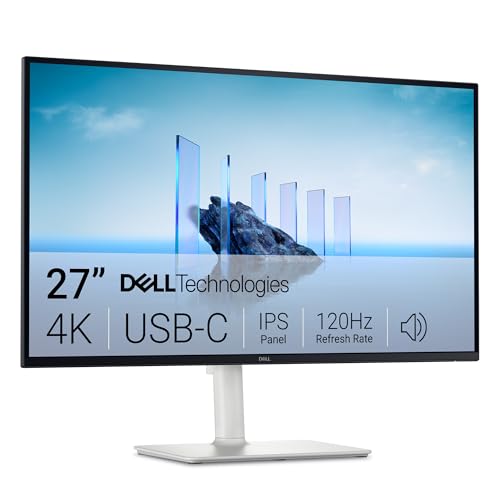
Dell 27 Plus 4K USB-C (S2725QC): The Best All-Round Desk Monitor
A 27-inch 4K IPS monitor with one USB-C cable for video and up to 65W charging, two HDMI 2.1 ports, USB-A ports and built-in speakers. The easiest one-cable desk for a thin laptop.
Dell lists a USB-C upstream port with DisplayPort 1.4 Alt Mode and up to 65W of power delivery, two HDMI 2.1 ports, one USB-C and two USB-A downstream ports, two 5W speakers and a stand with about 5.1 inches (130 mm) of height adjustment. That list covers the common laptop situations: USB-C video and charging, an HDMI fallback and a place to plug a keyboard or mouse. Its limits are 65W charging and no DisplayPort input. Read the full Dell S2725QC profile.
Dell UltraSharp U2725QE: For Dock-Level Connectivity
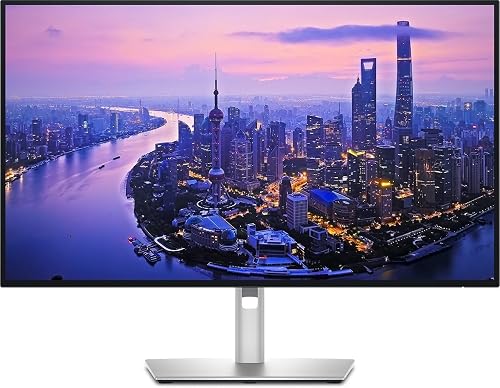
Thunderbolt 4 with up to 140W charging, 2.5GbE Ethernet, a KVM switch and a large USB hub in one monitor. For laptop users who want to replace a separate dock.
Dell’s spec page lists a Thunderbolt 4 upstream port with up to 140W power delivery, a Thunderbolt 4 downstream port for daisy-chaining, a 10Gbps USB-C port for the KVM switch, 2.5GbE Ethernet and several USB-A ports. It suits people with a high-wattage laptop charger, or anyone who switches between a work laptop and a personal computer. Dell lists no built-in speakers. How many displays a daisy chain can drive depends on your laptop. This monitor is sometimes sold by third-party sellers, so check the seller and whether Dell’s warranty applies. See the UltraSharp U2725QE profile.
Dell S2725HS: The Simple HDMI Choice
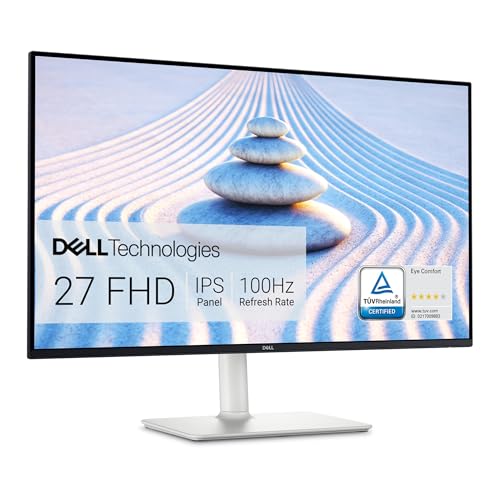
A 27-inch 1080p IPS monitor with two HDMI inputs, 100Hz, built-in speakers and a stand that adjusts for height, tilt, swivel and pivot. A plain pick for laptops with an HDMI port.
Dell’s list shows two HDMI inputs and no USB-C, DisplayPort or USB hub, so you charge the laptop separately. If your laptop has only USB-C ports, you need a USB-C to HDMI cable or adapter. In exchange you get a 27-inch screen, two 5W speakers and a fully adjustable stand with a 100 mm VESA pattern. Its 1080p panel is the least sharp option here. Dell’s page lists a one-year Advanced Exchange warranty. More in the Dell S2725HS profile.
Portable Monitors: Using a Second Screen on the Road
A portable monitor is a thin panel that travels in your laptop bag. The practical questions are connection, power and size.
- Connection. Look for USB-C with DisplayPort Alt Mode, plus a mini HDMI or HDMI input as a backup.
- Power. Some portable monitors run from the laptop’s USB-C port, and some need their own adapter. Ask which applies to yours, and remember that HDMI carries no power.
- Size and weight. A 15- to 16-inch screen is about right. Check the weight and thickness on the maker’s page.
- Stand and sleeve. A kickstand and a protective sleeve matter more than they sound.
Before a flight, pack the monitor in a carry-on with the sleeve, and check your airline’s rules if the monitor has a battery. We did not find a page from a screening authority that covers portable monitors, so we make no claim about checkpoint rules.
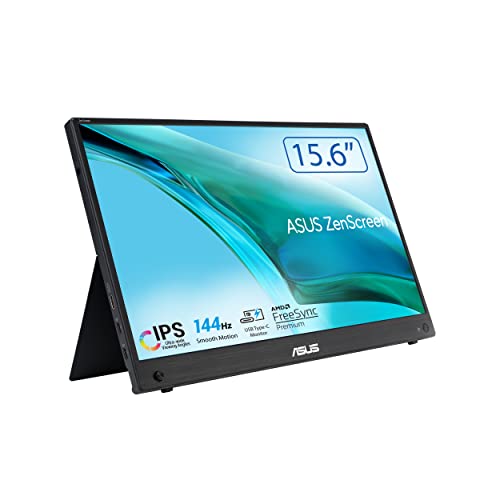
A 15.6-inch 1080p portable monitor at 144Hz with two USB-C ports, mini HDMI, a sleeve in the box and a net weight of about 2 lb. A light second screen for a laptop on the road.
ASUS lists a 15.6-inch IPS panel at 1920 x 1080 and 144Hz with FreeSync Premium, two USB-C ports with DisplayPort Alt Mode, one mini HDMI port, a net weight of 2.03 lb (0.92 kg) and a thickness of 0.47 inch (1.20 cm). The box includes a USB-C cable, a mini HDMI to HDMI cable, a power adapter and a sleeve. It has no speakers and no height adjustment, and ASUS’s spec page does not say whether one USB-C cable alone is enough power, so plan on the adapter if the picture dims. Read the ASUS ZenScreen MB16AHG profile.
Quick Picks
- One-cable desk for most people: Dell S2725QC.
- Laptop with a big charger, or a dock-style desk: Dell UltraSharp U2725QE.
- Laptop with HDMI and a tight budget: Dell S2725HS.
- Travel and a second screen anywhere: ASUS ZenScreen MB16AHG.
Sources
- Guide to DisplayPort over USB-C, Dell Support
- How to use multiple monitors in Windows, Microsoft Support
- Use your Mac with extended or mirrored displays, Apple Mac User Guide
- Dell 27 Plus 4K USB-C Monitor S2725QC, Dell US product page
- Dell UltraSharp 27 4K Thunderbolt Hub Monitor U2725QE, Dell UK specifications page
- Dell 27 Monitor S2725HS, Dell US product page
- ASUS ZenScreen MB16AHG technical specifications, ASUS US
Frequently asked questions
Will any USB-C monitor work with my laptop?
No. The laptop's USB-C port has to carry video. Dell's support guide says ports that support DisplayPort over USB-C carry a DisplayPort logo, and that a display connected to a port without that support shows no picture, without damaging the device. Thunderbolt ports also carry video. Check your laptop maker's spec page for the words DisplayPort Alt Mode or Thunderbolt.
Can the monitor charge my laptop?
Only if its USB-C port supports power delivery and your laptop accepts that wattage. Dell lists up to 65W on the S2725QC and up to 140W on the U2725QE. Compare those numbers with the wattage printed on your laptop's own charger. If the monitor offers less, the laptop may charge slowly or keep draining under heavy use.
What if my laptop only has HDMI?
Use HDMI. The Dell S2725HS lists two HDMI inputs and an included HDMI cable, and the ASUS ZenScreen MB16AHG lists a mini HDMI input with a mini HDMI to HDMI cable in the box. HDMI carries video but no power for the monitor, so the ASUS then needs its power adapter.
Can a portable monitor run from my laptop's USB-C port alone?
ASUS lists a maximum power consumption of 17W for the MB16AHG and includes a power adapter, but its spec page does not say whether a single USB-C cable is enough. Many laptops can power a portable screen, but some cannot. Try it with your laptop and keep the adapter in the bag.
How do I switch between extend and mirror in Windows?
Press the Windows key and P. Microsoft lists PC screen only, Duplicate, Extend and Second screen only. Duplicate shows the same thing on every display, and Extend spreads your desktop across screens so you can move windows between them.
How do I set up a second screen on a MacBook?
Open the Apple menu, then System Settings, then Displays. Click the monitor's name and use the Use as pop-up menu to choose an extended desktop or mirroring. Apple says a Mac laptop must have an external display connected for these options to appear. Check your model's tech specs for the number of external displays it supports.